Guide contents
- 1. What Firmware does
- 2. Before you flash
- 3. Flash Firmware
- 4. Join MeshWXPro-Setup
- 5. Open the setup page
- 6. Choose Meshtastic or MeshCore
- 7. Set U.S. coverage and alerts
- 8. Connect device Wi-Fi
- 9. Save and start
- 10. Check status and test
- 11. Normal node use / reverting
- 12. Troubleshooting
- 13. Keep it running
- 14. FAQ
Overview
What MeshWX Pro Firmware does
MeshWX Pro Firmware turns one supported Wi-Fi LoRa device into a dedicated weather-alert broadcaster. The device connects directly to the internet, monitors the United States National Weather Service, and sends selected alerts onto either Meshtastic or MeshCore.
- No separate computer after setup. The Firmware device handles alert monitoring and mesh broadcasting by itself.
- United States only. The Firmware version uses the U.S. National Weather Service.
- Meshtastic or MeshCore. Choose the mesh protocol during setup.
- Location targeted. Select the U.S. state and counties you want monitored.
- Wi-Fi required. Only the device running MeshWX Pro Firmware needs internet access; receiving mesh nodes do not.
While MeshWX Pro Firmware is installed, that device is dedicated to MeshWX Pro instead of operating as a normal Meshtastic or MeshCore node. This is not permanent: reinstall Meshtastic or MeshCore later if you want to return the device to normal node use.
Before you flash
Make sure Firmware is the version you need
You will need a certified MeshWX Pro Firmware device, a USB cable for the initial flash, desktop Chrome or Edge, a phone for setup, and Wi-Fi internet access where the Firmware device will run.
The supported-device list changes as additional hardware passes testing. Check the Firmware hardware list before flashing.
Step 1
Flash MeshWX Pro Firmware
Connect the device by USB
Use a certified MeshWX Pro Firmware device and a data-capable USB cable.
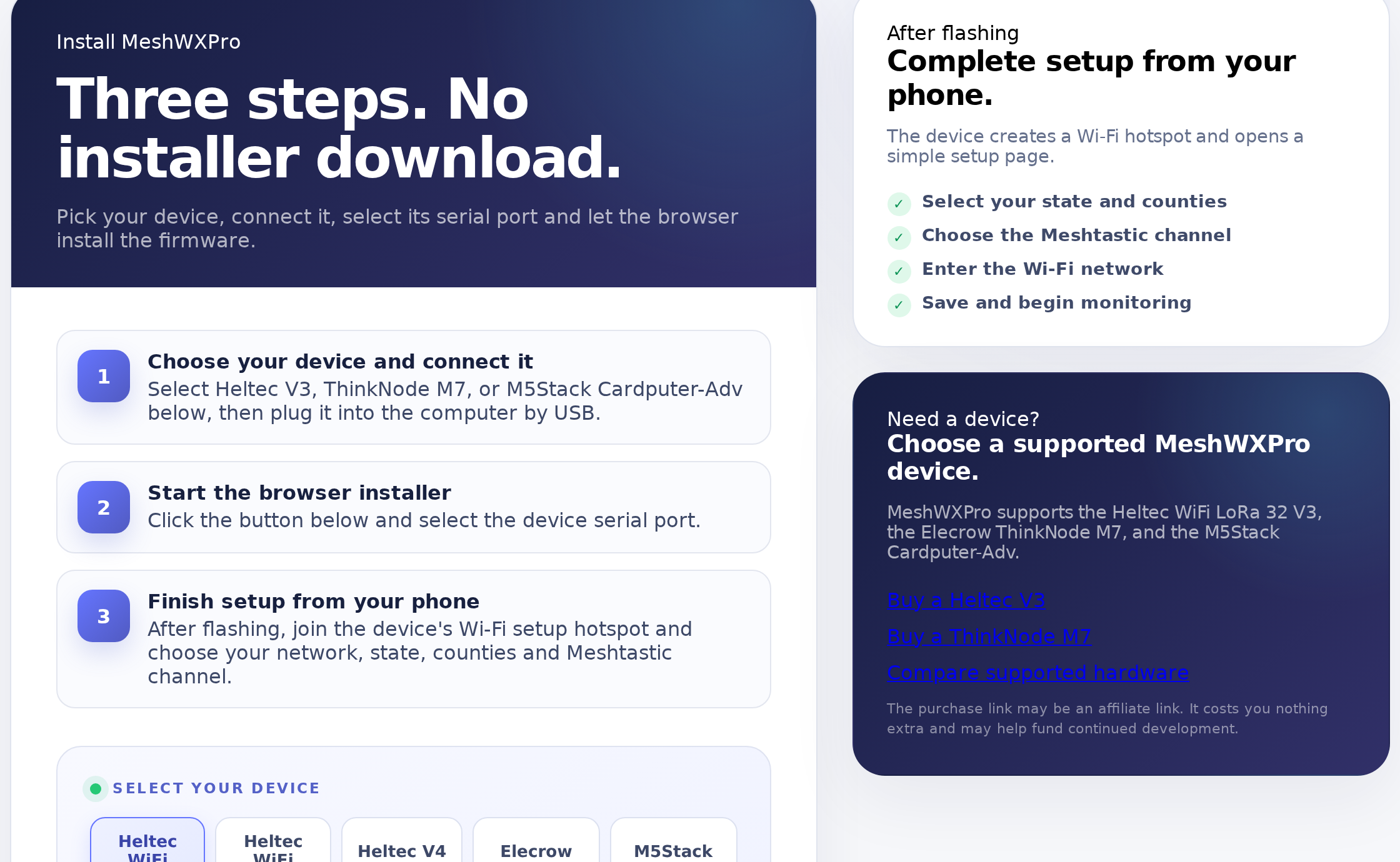
Open the web flasher
Use desktop Chrome or Edge and open MeshWX Pro Flasher.
Select the correct device and flash
Follow the flasher prompts and allow the installation to complete before disconnecting the device.
MeshWX Pro is beta and experimental firmware. Flashing custom firmware carries risk and may cause device malfunction, data loss, or render a device unusable. By using the MeshWX Pro software or flasher, you accept those risks.
Step 2
Join the MeshWXPro-Setup Wi-Fi network
After the flash, the device creates its own temporary Wi-Fi network for configuration.
Open Wi-Fi settings on your phone
Look for
MeshWXPro-Setup.Join the setup network
Your phone may warn that the network has no internet. That is expected during setup.
The setup SSID is exactly MeshWXPro-Setup.
Step 3
Open the setup page
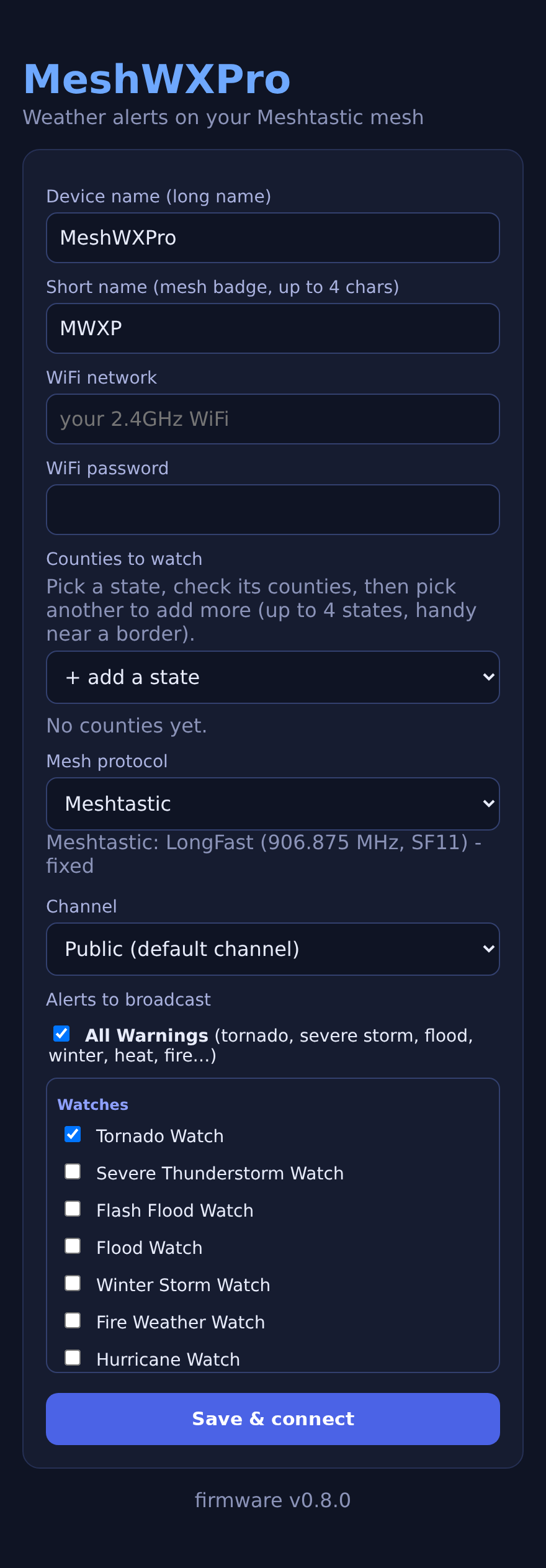
The setup page may open automatically after you join the device. If it does not, open a browser and go to 192.168.4.1.
Step 4
Choose Meshtastic or MeshCore
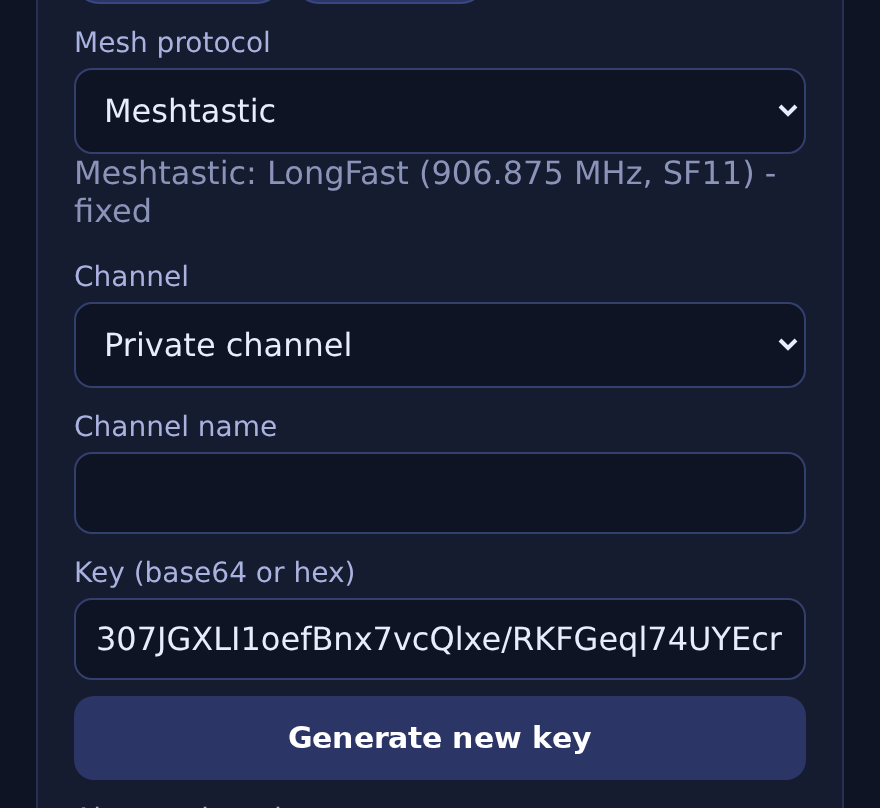
MeshWX Pro Firmware supports both mesh platforms, but the Firmware device uses the protocol you select during setup.
- Meshtastic: choose this when your receiving network is Meshtastic.
- MeshCore: choose this when your receiving network is MeshCore.
Configure the mesh and channel settings shown for the protocol you selected.
Step 5
Choose your U.S. coverage area
Select your state and the counties you want MeshWX Pro Firmware to monitor. The Firmware checks the National Weather Service for alerts affecting those selected counties.
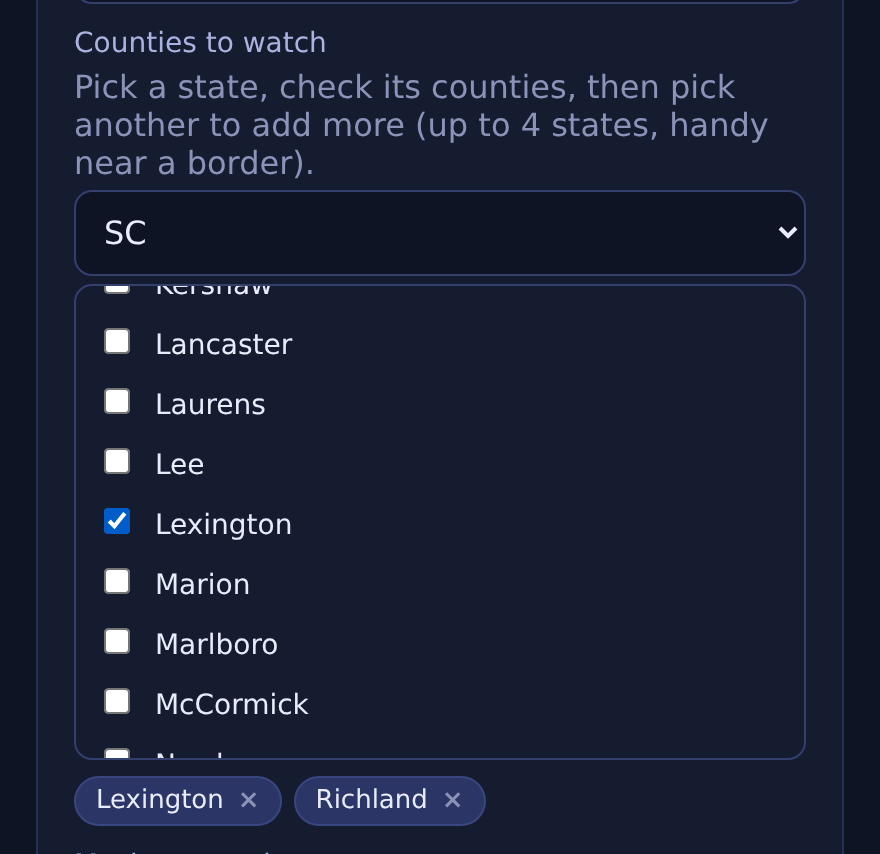
Choose what to broadcast
Select the alert types you want sent to the mesh. MeshWX Pro Firmware is designed to keep the mesh useful without repeatedly sending the same alert.

Step 6
Connect the Firmware device to Wi-Fi
Enter the Wi-Fi network the device will use in normal operation. The Firmware device needs internet access because it retrieves National Weather Service alerts directly.
- The Firmware device needs Wi-Fi. Receiving Meshtastic or MeshCore nodes do not need internet access.
- Your Wi-Fi password stays on the device. MeshWX Pro does not require an account or cloud login for configuration.
Step 7
Save, reboot, and start monitoring
Save the configuration. The device reboots, connects to your Wi-Fi, and begins monitoring the National Weather Service for the counties and alert types you selected.
MeshWX Pro Firmware polls the alert source regularly and sends each alert once so the mesh is not flooded with duplicates.
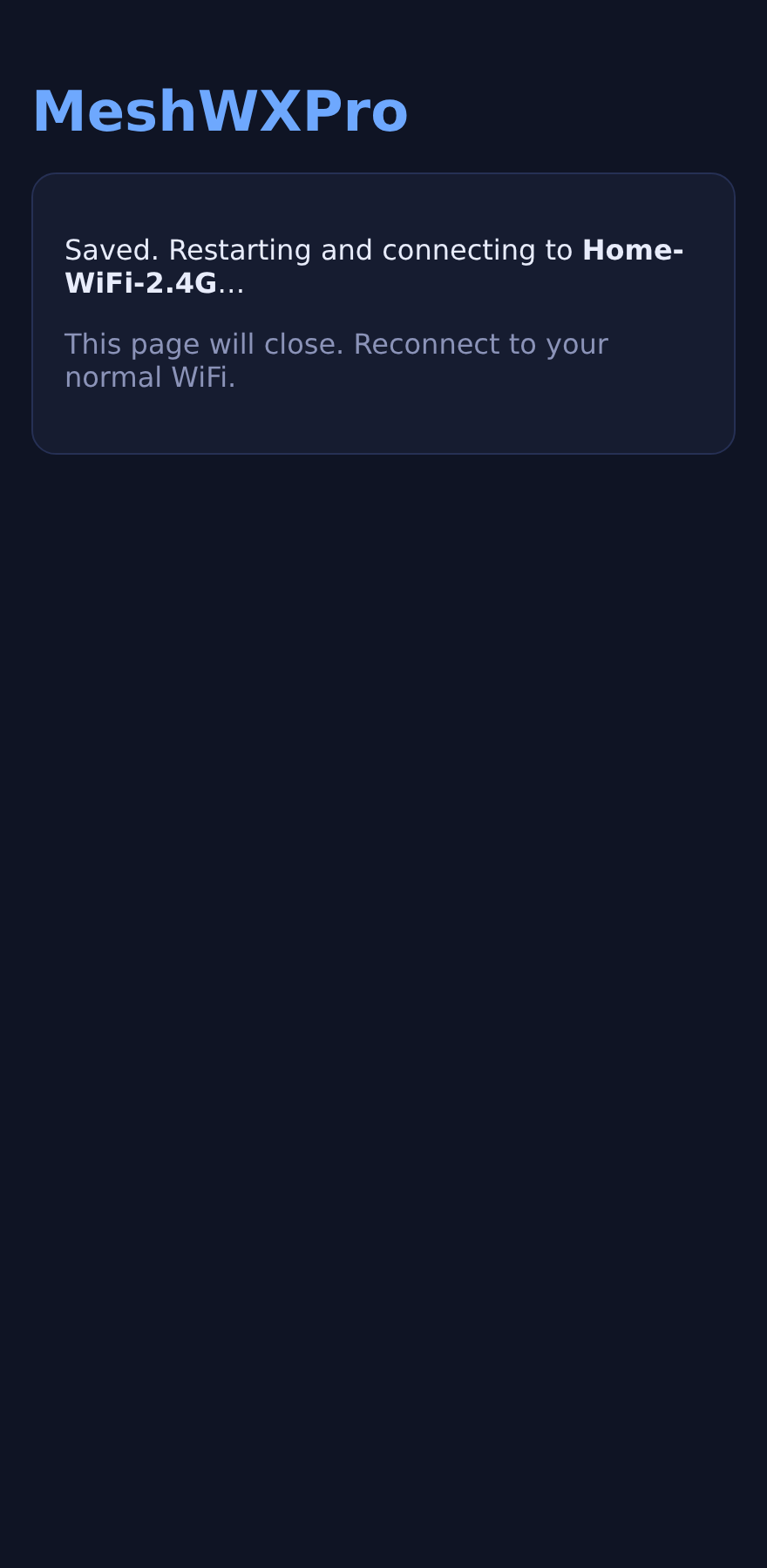
No separate computer or phone needs to stay connected. Leave the Firmware device powered and connected to Wi-Fi.
Verify operation
Check status and send a test
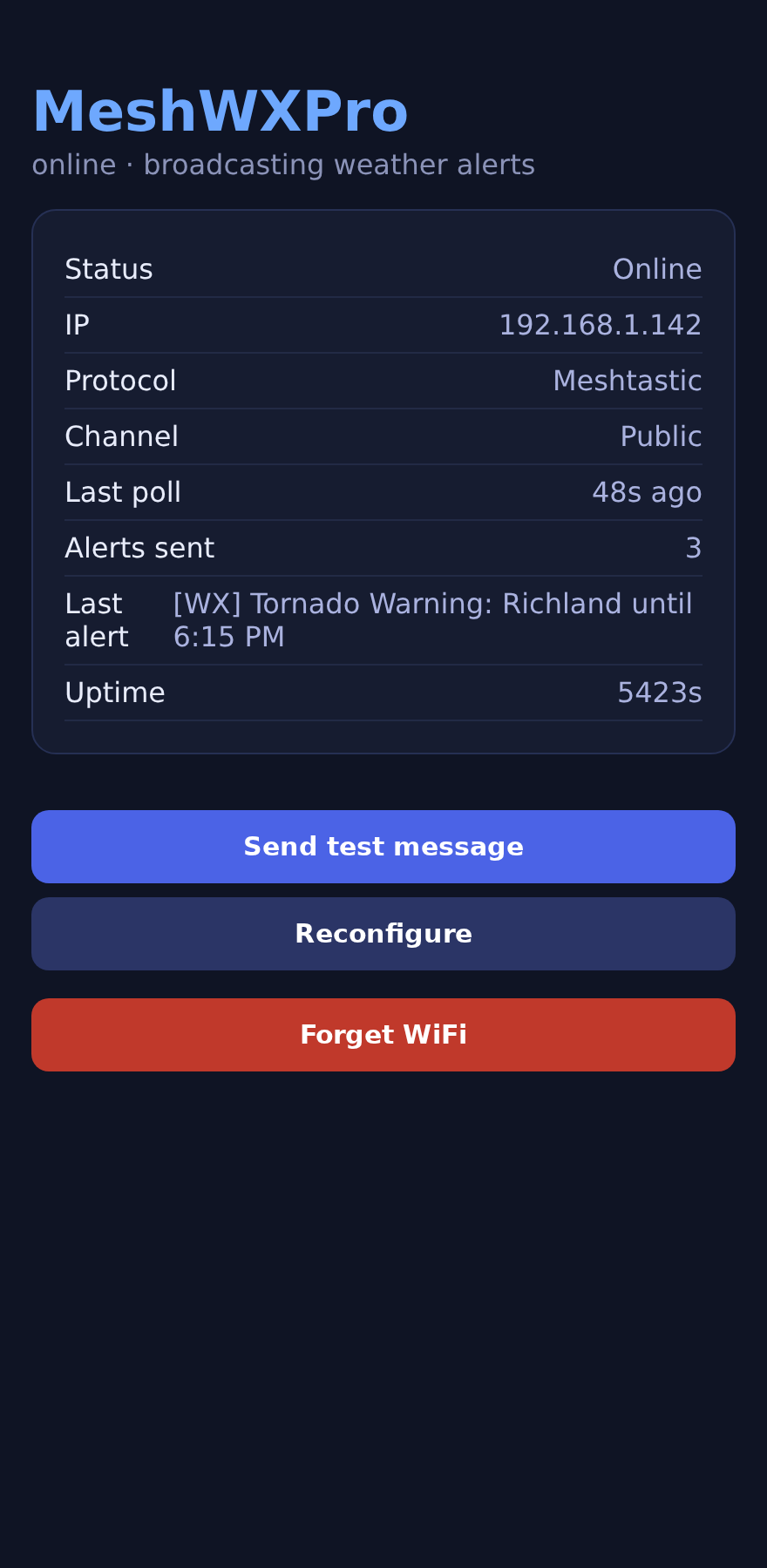
Use the Firmware status interface to confirm that Wi-Fi, alert monitoring, and mesh broadcasting are working. Before relying on the installation, send a test and verify that another node receives it.
Device behavior
What happens to normal Meshtastic or MeshCore use?
MeshWX Pro Firmware replaces the normal Meshtastic or MeshCore firmware on that device while it is installed. The hardware is not permanently changed or locked.
- While MeshWX Pro Firmware is installed: the device is a dedicated MeshWX Pro broadcaster.
- To use it as a normal node again: reinstall Meshtastic or MeshCore firmware using the normal flashing method for that device.
Use MeshWX Pro App instead. The App connects to an existing Meshtastic or MeshCore node while its normal mesh firmware remains installed.
Troubleshooting
If the Firmware is not sending alerts
The setup network is not visible
Restart the device and look again for MeshWXPro-Setup. If the device never creates the setup network, repeat the flash and make sure the correct supported device was selected.
The setup page does not open
Make sure your phone is connected to MeshWXPro-Setup, then manually browse to 192.168.4.1.
The device does not come online after saving
Recheck the Wi-Fi network and password. The Firmware must have internet access to retrieve National Weather Service alerts.
A test sends but another node does not receive it
Check that the receiving node is on the same mesh protocol, LoRa region/preset, and intended channel as the Firmware device.
An alert was expected but never appeared
Confirm the correct county is selected and that the alert type is enabled. MeshWX Pro also sends each alert once rather than repeatedly rebroadcasting the same message.
Resilience
Keep the Firmware device running
The Firmware can only deliver new alerts while the device has power and internet access.
- Power: use a UPS, battery, or solar-backed supply if the installation is intended to stay active during outages.
- Internet: the Firmware device must be able to reach the National Weather Service. If its internet connection fails, it cannot fetch new alerts.
- Mesh: receiving nodes can remain beyond cellular coverage as long as the LoRa mesh can carry the message.
MeshWX Pro Firmware is not a certified warning system. Keep an official warning source such as NOAA Weather Radio, Wireless Emergency Alerts, local sirens, or other official emergency channels.
FAQ
Common Firmware questions
Do I run the App and Firmware together?
No. They are separate ways to run MeshWX Pro. Choose one.
Can I use Firmware outside the United States?
No. The Firmware version uses the U.S. National Weather Service. Use the App for supported international regions.
Does the Firmware device need Wi-Fi?
Yes. The Firmware device itself needs Wi-Fi internet access.
Does every receiving node need Wi-Fi?
No. Only the MeshWX Pro Firmware device needs internet access. Alerts then travel over Meshtastic or MeshCore.
Can I switch the device back to Meshtastic or MeshCore later?
Yes. Reinstall the normal Meshtastic or MeshCore firmware for the device.
Ready to set up MeshWX Pro Firmware?
Flash a certified device, configure it from your phone, verify a test message, and leave it running as your dedicated U.S. weather-alert broadcaster.